
A simple physics simulation software for prototyping and experimenting with the Bullet Physics library. It provides a graphical user interface (GUI) for real-time interaction and a command-line interface (CLI) for batch processing and scripting.


- Physics Simulation: Powered by the robust and widely-used Bullet Physics library.
- Cross-Platform: Builds and runs on Linux, Windows, and macOS.
- GUI: An OpenGL-based GUI for visualizing and interacting with the simulations in real-time.
- Scripting: Extend and control simulations using Lua scripting.
- Import/Export:
- Command-Line Interface: A powerful CLI for running simulations, rendering animations, and piping data to other tools like gnuplot.
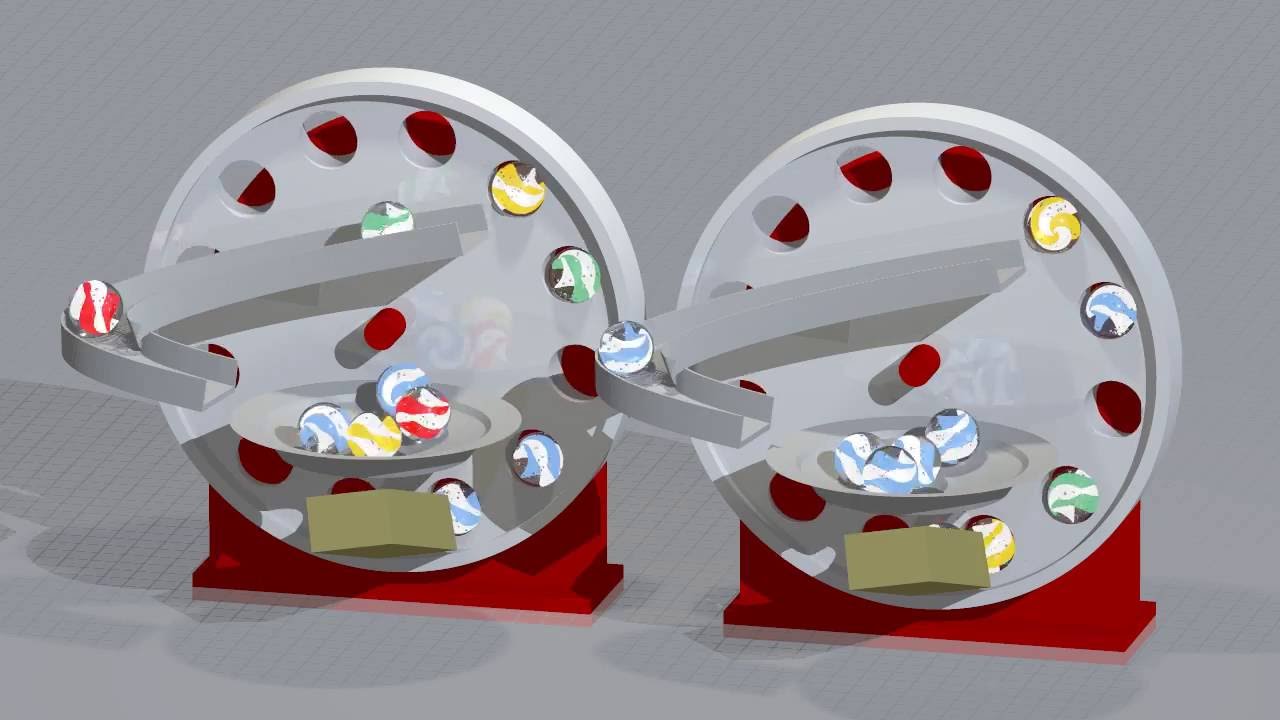
Release builds are attached to each release. The macOS disk images bundle their Homebrew dependencies, so each one requires at least the macOS version its build machine used:
| Disk image | Requires |
|---|---|
bpp-<version>-macos-arm64.dmg (Apple Silicon) |
macOS 14 or later |
bpp-<version>-macos-x86_64.dmg (Intel) |
macOS 15 or later |
On an older macOS, build from source instead.
Select your operating system:
By default, F6 quick-render shells out to an external povray/pvengine
executable, same as it always has. There is an experimental alternative
build flag, USE_VFE, that instead embeds POV-Ray's own VFE (Virtual Front
End) API directly into bpp, so F6 renders in-process with a live pixel
preview inside the 3D view, and a real cancel (Esc) instead of only killing
a subprocess.
USE_VFE defaults to 0 (off) and building bpp normally is unaffected by
it either way. Turning it on requires a sibling
POV-Ray source checkout and a prebuilt
static library — see povray-mingw/README.md
(Windows/MSYS2 MinGW-w64) or povray-linux/README.md
(Linux) for the full build steps. Once that's in place:
qmake "USE_VFE=1" bpp.proThis is a prototype, and statically linking POV-Ray's AGPLv3-licensed core
into bpp's AGPLv3 binary means the resulting binary is bound by AGPLv3
obligations — worth deciding deliberately before shipping a
USE_VFE=1 build beyond a local build.
The Linux build has been verified end-to-end (builds, links, and renders via
F6 without crashing); see povray-linux/README.md
for the gotchas that took to get there. The Windows/MSYS2 path is untested
beyond compiling — see povray-mingw/README.md.
The Dockerfile packages bpp as a headless worker for running on
a server or a Kubernetes cluster (Talos Linux
included). It needs no display: it runs a Lua script and, with -e, exports
the frames as POV-Ray scenes for a renderer such as
povomatic. The image ships the demos
under /usr/share/bpp/demo, plus OpenSCAD and POV-Ray.
mkdir -p out
docker run --rm --user "$(id -u):$(id -g)" -v "$PWD/out:/work" koppi/bpp \
    -n 278 -e -f /usr/share/bpp/demo/basic/00-hello.lua   # writes out/export/00-hello/
Arguments are the command-line ones, and without any the image
prints --help. To run your own script, mount it and pass its path. The
container runs as the unprivileged uid 10001 and /work is its working
directory and home, where the export (/work/export) and bpp's settings and
cache go. That is the only place it writes, so it also runs with a read-only
root filesystem and all capabilities dropped. /work must be writable by the
container's user: hence --user above, or fsGroup on a Kubernetes volume.
A headless -f run starts in the container's working directory, not in the
script's folder, so a script that loads files lying next to it (the meshes of
the Dzhanibekov demo, say) fails with
... not found unless its folder is the working directory. Without -e, set
that with -w, which is workingDir in a Kubernetes container:
docker run --rm -w /usr/share/bpp/demo/WyomingWill/EulersGallery/exhibits/Dzhanibekov koppi/bpp \
    -n 100 -f dzhanibekov.lua
An export is written to export/ below the working directory, which has to be
writable, and the installed demos are not. So with -e, mount the script's
folder (or a copy of it) as /work instead:
docker run --rm --user "$(id -u):$(id -g)" \
    -v "$PWD/demo/WyomingWill/EulersGallery/exhibits/Dzhanibekov:/work" koppi/bpp \
    -n 278 -e -f dzhanibekov.lua      # writes demo/WyomingWill/EulersGallery/exhibits/Dzhanibekov/export/
On Kubernetes, a Job that runs under the restricted Pod Security profile:
apiVersion: batch/v1
kind: Job
metadata:
  name: bpp-hello
spec:
  backoffLimit: 0
  template:
    spec:
      restartPolicy: Never
      securityContext:
        runAsNonRoot: true
        fsGroup: 10001
        seccompProfile:
          type: RuntimeDefault
      containers:
        - name: bpp
          image: koppi/bpp:latest
          args: ["-n", "278", "-e", "-f", "/usr/share/bpp/demo/basic/00-hello.lua"]
          securityContext:
            allowPrivilegeEscalation: false
            readOnlyRootFilesystem: true
            capabilities:
              drop: ["ALL"]
          volumeMounts:
            - name: work
              mountPath: /work
      volumes:
        - name: work
          emptyDir: {}   # use a PersistentVolumeClaim to keep the export
The published image is linux/amd64. To build it yourself, for example for
another architecture, run docker build -t koppi/bpp .: a first stage builds
the Debian package from debian/, the way the release workflow
does, and the runtime image installs it.
These work anywhere in the main window (including while editing the Lua script):
- Ctrl+N: New file.
- Ctrl+O: Open file.
- Ctrl+S: Save file.
- Ctrl+A: Save file as.
- Ctrl+Q: Exit.
- F12: Preferences.
- Ctrl+C: Start/pause the physics simulation.
- Ctrl+R: Restart the simulation.
- F6: Quick render current frame with POV-Ray (or in-process via the experimental embedded VFE API, if enabled — see Optional: embedded POV-Ray VFE rendering above).
- F11: Toggle full screen.
These require the 3D view to have keyboard focus:
- S: Start/stop the physics simulation.
- P: Toggle POV-Ray export mode.
- G: Toggle PNG screenshot saving mode.
- A: Toggle display of the world axis.
- F: Toggle FPS display.
- Enter: Start/stop the animation.
- Space: Toggle between fly and revolve camera modes; while an embedded VFE render (see above) is in progress, pauses/resumes it instead.
- Esc: Cancel an in-progress embedded VFE render.
- Arrow Keys: Move the camera.
- Tab: Toggle between the single perspective view and a 4-view CAD-style layout (perspective, top, front, right). Scroll to zoom and drag to pan in the top/front/right views.
- H: Show the QGLViewer help window.
The command-line interface allows you to run simulations without the GUI. For
example, you can pipe the simulation data to gnuplot to visualize the results:
bpp -n 200 -f demo/basic/01-hello-cmdline.lua | \
gnuplot -e "set terminal dumb; plot for[col=3:3] '/dev/stdin' using 1:col title columnheader(col) with lines"povomatic renders a POV-Ray animation across a Kubernetes cluster, one job per frame. To send it a bpp scene, export the frames and submit from the export directory:
bpp -f demo/basic/00-hello.lua -n 278 -e       # writes export/00-hello/
make -C export/00-hello povomatic              # rsync + submit via povomatic.py
make povomatic runs scripts/povomatic-job.py,
which copies includes/ and POV-Ray's own standard includes (colors.inc
etc., which settings.inc pulls in and the render image does not ship) to
povomatic's shared asset volume, copies the exported scene to its input volume,
and calls povomatic.py with the frame count and clock range read from the
generated .ini (bpp exports each frame so that POV-Ray's clock equals the
frame number). Pass extra options through
POVOMATIC_ARGS, e.g. make -C export/00-hello povomatic POVOMATIC_ARGS="--res 1080p --priority 5";
run scripts/povomatic-job.py --help for the full list. The API URL comes from
$POVOMATIC_API (or --api-url); $POVOMATIC_INPUT, $POVOMATIC_ASSETS,
$POVOMATIC_REMOTE_INPUT and $POVRAY_INCLUDE_DIR override the volume and
include paths.
Contributions are welcome! Please feel free to submit a pull request or open an issue on the GitHub repository.
- Jakob Flierl – koppi – Creator and primary maintainer since 2011.
- Jaime Vives Piqueres – jaimevives – POV-Ray export, the Citroën GS and box-with-oranges demo scenes, and his latest computer generated images.
- WyomingWill – the Chebyshev four-bar linkage walker demos.
- Demos in
demo/claudeand select other scripts were developed with the assistance of Claude Code.
The includes/ directory bundles POV-Ray assets and lighting
macros from other authors, each under its own terms; see
includes/README.md for full details.
| Content | Author(s) | License |
|---|---|---|
| LightSys 4 lighting macros | Jaime Vives Piqueres, with Ive and Philippe Debar | not stated in-repo; used with attribution |
| CIE XYZ color model | Ive | not stated in-repo; used with attribution |
| Skylight model | Philippe Debar, adapted by Ive | not stated in-repo; used with attribution |
| Studio Lighting Kit | Jaime Vives Piqueres | not stated in-repo; used with attribution |
| Box-of-oranges scene | Jaime Vives Piqueres | CC BY-SA 3.0 |
| Citroën GS car model | Jaime Vives Piqueres | CC BY-SA 3.0 |
| Nissan Micra K11 car model | Rene Bui | CC BY-NC 3.0 |
| Dice model | found on Wikipedia | Public Domain |
| Humanity icon theme | Canonical / Ubuntu | not stated in-repo; used with attribution |
A few other bundled POV-Ray assets (e.g. the LEGO buggy, Wunderbaum, and
cajón meshes under includes/) carry no attribution or license information
in this repository.
The Bullet Physics Playground itself is licensed under the GNU Affero General Public License v3. Bundled third-party content retains its own license as noted above.