The In Context API lets you create and edit In Context projects from your own systems, send respondents into a study, and read back the behavioral data that was recorded. It is a single GraphQL endpoint.
| Endpoint | POST https://api.incontext-research.com/v4/graphql |
| Authentication | Authorization: Secret <your API secret> header |
| Format | JSON request body with query and optional variables and operationName |
| Interactive explorer | portal.incontext-research.com/docs/explorer (requires a Portal login) |
| Source of this page | github.com/eye-square/docs |
Related guides: survey integration, supported ad formats, system requirements, metrics per format, supported languages per context, plugins and webhooks.
This walks you from an API secret to your first results in six steps. Every example on this page can be pasted into the explorer or sent with curl.
Organization admins create and manage API secrets in the Accounts app: accounts.incontext-research.com/organizations/me/secrets. A secret belongs either to a team or to the whole organization (see Team and organization secrets).
Use the secret only from your server. Never ship it to a browser, an app, or a survey page.
curl https://api.incontext-research.com/v4/graphql \
  -H 'Content-Type: application/json' \
  -H "Authorization: Secret $INCONTEXT_API_SECRET" \
  -d '{ "query": "{ me { role ... on Team { name } ... on Organization { name } } }" }'
{ "data": { "me": { "role": "TEAM", "name": "your-team-name" } } }If role is PUBLIC, the secret was not accepted: check the header name, the Secret prefix and the value. An unauthenticated request still succeeds, but the schema then contains only me, so a missing field or mutation usually means an authentication problem rather than a missing feature.
List the available context types and look at the data a format needs:
{
  __type(name: "CONTEXT_TASK_TYPES") {
    enumValues { name description }
  }
}
{
__type(name: "ContextTaskDataFacebookNewsfeedVideoAutoplay") {
fields { name description type { kind name ofType { name } } }
}
}You can also browse these types without writing queries: open Docs in the explorer and search for the type name.
mutation CreateProject($data: ProjectInput!) {
  projectCreate(data: $data) {
    id
    subjectGroups {
      nodes {
        id
        entryUrl
      }
    }
  }
}
Variables:
{
  "data": {
    "description": "Red Cross video test - Facebook feed",
    "language": "en_US",
    "billingReference": "PO-12345",
    "subjectGroups": [
      {
        "id": "fb-desktop",
        "device": "desktop",
        "contextMode": "public",
        "tasks": [
          {
            "id": "exposure",
            "type": "context",
            "contextType": "facebookNewsfeedVideoAutoplay",
            "adName": "Red Cross",
            "userGuidance": false,
            "timeout": 120,
            "exposureDuration": 60,
            "data": {
              "brandName": "American Red Cross",
              "text": "Join us today at redcross.org",
              "logoSrc": {
                "imageUrl": "https://d2dom67l5t3ck7.cloudfront.net/demos/redcrosslogoUS.jpg"
              },
              "mediaSrc": {
                "videoUrl": "https://d2dom67l5t3ck7.cloudfront.net/demos/AmericanRedCross15.mp4"
              },
              "brandUrl": "https://www.facebook.com/redcross/"
            }
          }
        ]
      }
    ]
  }
}
The response contains the generated project ID (for example 2026-10_AB001) and one entryUrl per subject group. Media URLs must be public HTTPS links: the API downloads them during validation and rejects the request if a file cannot be reached. Always send subjectGroups, even as an empty list [].
Link respondents from your survey to the group's entryUrl, adding your respondent ID as UserHash:
https://schedule.incontext-research.com/scheduler/entry?ProjectID=2026-10_AB001&SubjectGroupID=fb-desktop&UserHash=RESPONDENT_ID
At the end of the study the respondent is sent back to your survey with success, eligible and other parameters. See Sending respondents and survey integration.
query Results($projectId: CustomID!) {
  project(id: $projectId) {
    metrics(first: 50) {
      totalCount
      pageInfo { hasNextPage endCursor }
      nodes {
        subjectGroupId
        taskId
        subjectId
        elements(first: 20) {
          nodes {
            id
            type
            metrics(first: 100) { nodes { name value } }
          }
        }
      }
    }
  }
}
{ "projectId": "2026-10_AB001" }subjectId is the UserHash you passed in step 5, so you can join the results to your survey data. See Query test results.
A project is one study. It contains one or more subject groups (often called cells): one test setup that a respondent is routed into. Each subject group has a device class (desktop or mobile) and an ordered list of tasks.
Task type |
What the respondent does | Configured with |
|---|---|---|
context |
Browses a realistic replica of a platform (Facebook, Instagram, TikTok, YouTube and others) that contains your ad | contextType and data |
presenter |
Watches ads in a fixed presenter, for example a TV player | presenterType and data |
setup |
Answers a short setup step, for example choosing topics of interest | setupType and data |
survey |
Returns to your survey in the middle of the study and comes back afterwards | no further fields |
Tasks can be combined in any order. A typical task, survey, task group exposes the respondent to the ad, returns them to your survey for intermediate questions, and then shows a second, guided exposure:
{
  "id": "fb-tst",
  "device": "mobile",
  "contextMode": "public",
  "tasks": [
    { "id": "exposure-1", "type": "context", "contextType": "facebookNewsfeedVideoAutoplay", "userGuidance": false, "...": "..." },
    { "id": "mid-survey", "type": "survey" },
    { "id": "exposure-2", "type": "context", "contextType": "facebookNewsfeedVideoAutoplay", "userGuidance": true, "...": "..." }
  ]
}
Key task settings:
| Field | Meaning |
|---|---|
exposureDuration |
Seconds the respondent can be exposed to the ad within a context. The task ends when it runs out. |
timeout |
Maximum task duration in seconds. If no exposure duration is set, the task ends after the timeout. |
userGuidance |
Guides the respondent to the test ad: newsfeeds scroll to the ad and lock navigation, stories open the ad directly, YouTube ends the task after the pre-roll. |
randomization |
Tasks with randomization enabled are shuffled among each other. |
adName |
Ad name used in instructions, for example "Please now look for the {{name}} ad". |
contextMode is always public: a replica that uses publicly available content and needs no browser extension, app or platform login. The value personal is no longer supported.
Send your API secret in the Authorization header with the prefix Secret:
Authorization: Secret <your API secret>
me { role } tells you how the request was authenticated:
role |
Meaning |
|---|---|
TEAM |
Authenticated with a team secret |
ORGANIZATION |
Authenticated with an organization secret |
USER, ADMIN |
Authenticated as a Portal user (for example in the explorer) |
PUBLIC |
Not authenticated. Only me is available. |
The schema you see depends on how you are authenticated, so introspect with the same credential your integration uses.
A team secret reads and creates projects of its team. An organization secret works across the organization's teams: projects and projectCreate accept optional organizationId and teamId arguments, and new projects go to the organization's default team when no team is given. The IDs are currently returned by organization { id name } and organizationTeam { id name }.
The older email and password token login (/v4/auth) is deprecated. Use API secrets for all integrations.
Send a POST request with a JSON body to https://api.incontext-research.com/v4/graphql:
{
  "query": "query Project($id: CustomID!) { project(id: $id) { id description } }",
  "variables": { "id": "2026-10_AB001" },
  "operationName": "Project"
}
The root operations are:
| Operation | Purpose |
|---|---|
me |
Current identity and role |
project(id) |
One project, including its groups, tasks, metrics and timelines |
projects(first, last, after, before, organizationId, teamId) |
All projects you can access, oldest first |
search(type: PROJECT, query, first, ...) |
Text search across your projects |
settings |
Organization defaults, for example success parameters |
plugins, plugin, pluginInstallations, pluginInstallation |
Available and installed plugins |
projectCreate(data, organizationId, teamId) |
Create a project (mutation) |
projectUpdate(id, data) |
Update a project (mutation) |
There are no subscriptions, and the API does not upload media: host images and videos yourself at public HTTPS URLs.
projectUpdate takes a full ProjectInput. Read the project first, change what you need, and send back description, language and the complete subjectGroups list: the groups you send replace the existing ones. Read-only fields that appear in query results (for example entryUrl, or the width and height of images) are not accepted as input, so remove them before sending.
The explorer is an interactive GraphQL editor (GraphiQL) in the Portal. It is the easiest way to learn the schema and to see how nested data, for example subjectGroups and their tasks, or metrics with their elements, is structured before you write code.
- Sign in to the Portal and open portal.incontext-research.com/docs/explorer.
- In the toolbar, choose user credentials (your Portal login) or access secret and paste an API secret. The schema depends on the credential, so test with the same kind of credential your integration will use.
- Click Docs at the top right to browse the schema. Start at
QueryorMutationand click through fields and types, or search for a type such asProjectInputorContextTaskDataFacebookNewsfeedStatic. Each field shows its type and description. - Write a query in the left pane. Press Ctrl-Space for autocomplete, hover a field to see its description, and use Prettify to format the query.
- Run it with Ctrl-Enter or the play button. The result appears on the right with the same nesting as your query, so you can add fields level by level and see what each one returns.
Examples in the toolbar loads ready-made queries and History lists your earlier ones. The query and variables are kept in the page URL, so you can bookmark or share a query. The "Open in explorer" links on this page work that way.
The data field of a task is JSON, so the explorer cannot autocomplete inside it. See Task data and format discovery.
Lists use the GraphQL connection model. They take four arguments:
| Argument | Meaning |
|---|---|
first: Int |
The first n entries, or the first n after the after cursor |
last: Int |
The last n entries, or the last n before the before cursor |
after: Cursor |
Start after this cursor |
before: Cursor |
End before this cursor |
Rules:
- Always pass
firstorlastonprojects,search,metricsandtimelines. Without one, the request fails with an internal server error. - Use either
firstorlast, not both, and eitherafterorbefore, not both. - The limit must be a positive integer. Keep pages small (for example 50 to 100) and page with cursors instead of requesting everything at once.
projectsis ordered oldest first, soprojects(last: 10)returns your ten newest projects.- Nested lists of a single project, such as
subjectGroupsandtasks, can be read without arguments.
Every connection returns pageInfo, totalCount, nodes and edges:
{
  projects(last: 2) {
    pageInfo {
      startCursor      # cursor of the first returned entry
      endCursor        # cursor of the last returned entry
      hasNextPage      # more entries after endCursor
      hasPreviousPage  # more entries before startCursor
    }
    totalCount         # number of entries in the whole list
    nodes { id description createdAt }
    edges { cursor node { id } }
  }
}
To walk through a long list, repeat the query with after: <endCursor> while hasNextPage is true:
query Page($after: Cursor) {
  projects(first: 50, after: $after) {
    pageInfo { hasNextPage endCursor }
    nodes { id description }
  }
}GraphQL errors are returned with HTTP status 200 in the errors array of the response, next to any data that could still be resolved. Always check errors before using data.
Each error has a type, a message and a nested list of errors. An entry can have an origin: the path to the input field that caused it. A string in the path is a property name and a number is a list index.
{
  "errors": [
    {
      "type": "InvalidDataError",
      "message": "Invalid data",
      "errors": [
        {
          "message": "invalid video url - format has to be .mp4",
          "origin": ["subjectGroups", 0, "tasks", 0, "data", "mediaSrc"]
        },
        {
          "message": "invalid image url - cannot access image under https://example.com/logo.jpg",
          "origin": ["subjectGroups", 0, "tasks", 0, "data", "logoSrc"]
        }
      ]
    }
  ],
  "data": { "projectCreate": null }
}
The first origin above points to data.subjectGroups[0].tasks[0].data.mediaSrc. All validation problems of a request are reported together.
origin is optional. It is only set when the error can point at a specific part of your input: InvalidDataError entries always have it, ClientError and GraphQLError entries sometimes. An InternalServerError can have causes unrelated to your input and does not point at an origin. Expect origin to be missing or an empty list.
type |
Cause | What to do |
|---|---|---|
InvalidDataError |
The project input failed validation, for example an unreachable media URL or a device the format does not support | Fix the fields named in origin and resend |
GraphQLError |
The query does not match the schema, for example an unknown field or a wrong enum value | Check the query against the schema in the explorer |
ClientError |
The request was understood but cannot be carried out, for example missing permissions | Check the credential and the IDs |
InternalServerError |
Unexpected server error. The message contains an error ID. | Retry once. If it persists, send the error ID to support. |
A project that does not exist, or that your credential cannot access, is returned as null without an error.
A create or update rejected with InvalidDataError or GraphQLError saves nothing. After a timeout or an internal server error on a mutation, query the project (or projects(last: 5)) before retrying, so that you do not create a duplicate.
The data field of a task is a JSON object whose shape depends on the contextType (or presenterType and setupType). Because it is JSON, the explorer cannot autocomplete inside it and may show a false "Expected value of type JSON" warning. You can ignore that warning: the server validates data and reports real problems in the response.
Each format's data is described by a schema type named ContextTaskData plus the format name with a capital first letter, for example ContextTaskDataFacebookNewsfeedStatic for facebookNewsfeedStatic. The enums CONTEXT_TASK_DATA_TYPES, PRESENTER_TASK_DATA_TYPES and SETUP_TASK_DATA_TYPES list all of them.
{
  __type(name: "ContextTaskDataFacebookNewsfeedStatic") {
    fields { name description type { kind name ofType { name } } }
  }
}
Media rules that apply to most formats:
- Images:
{ "imageUrl": "https://..." },.jpgor.png. - Videos:
{ "videoUrl": "https://..." },.mp4. - URLs must use HTTPS and be publicly reachable when you create or update the project.
- Query results add read-only fields such as
width,heightorlength. Remove them before reusing a task as input.
The tables below summarize the input types. The schema in the explorer holds the complete, current definitions and descriptions.
| Field | Type | Notes |
|---|---|---|
description |
String! |
Client, project and contact information. Used for billing. |
language |
LANGUAGES! |
Language of instructions and platform UI, for example en_US. See supported languages. |
billingReference |
String |
Job, project or PO number for billing |
allowReentry |
Boolean |
Lets respondents reopen an unfinished session with the same entry URL within two hours. They restart the task they left. |
deploymentFilters |
DeploymentFilterInput |
Allowed operating systems and browsers. See Deployment filters. |
subjectGroups |
[SubjectGroupInput] |
The groups of the project. Always send it, as [] if empty. |
Project IDs are generated when you create a project. You cannot choose them.
| Field | Type | Notes |
|---|---|---|
id |
CustomID |
Group ID, unique within the project. Used in entry URLs and results. |
device |
desktop or mobile |
Device class. Mobile covers smartphones and tablets. |
contextMode |
public |
Always public |
tasks |
[TaskInput] |
Ordered list of tasks |
returnUrl |
String |
Template for a custom return URL. See Custom return URL. |
deploymentFilters |
DeploymentFilterInput |
Overrides the project's deployment filters for this group |
plugins |
[SubjectGroupPluginSetupInput] |
Plugins to run in this group (name and options) |
| Field | Type | Used by | Notes |
|---|---|---|---|
id |
CustomID |
all | Task ID, unique within the group. Used in results. |
type |
TASK_TYPES |
all | context, presenter, setup or survey |
contextType |
CONTEXT_TASK_TYPES |
context | See Supported context types |
presenterType |
PRESENTER_TASK_TYPES |
presenter | tvPlayer or onlineSlideshow |
setupType |
SETUP_TASK_TYPES |
setup | topicSelection |
data |
JSON |
context, presenter, setup | Format-specific data |
exposureDuration |
Duration (seconds) |
context | Exposure time |
timeout |
Duration (seconds) |
context, presenter, setup | Maximum task duration |
userGuidance |
Boolean |
context | Guide the respondent to the ad |
adName |
String |
context | Ad name used in instructions |
randomization |
Boolean |
context, presenter | Shuffle with other randomized tasks |
instructions |
TaskInstructionInput |
context, presenter, setup | See Instructions |
successParameters |
ContextTaskSuccessParametersInput |
context, presenter | See Success evaluation |
taskEndButton |
TaskEndButtonInput |
context, presenter | Button that lets respondents end the task early |
tracking |
TaskTrackingInput |
context, presenter | Additional timelines to record |
To add eye tracking or emotion tracking, use plugins on the subject group.
Use the values of the CONTEXT_TASK_TYPES enum as contextType. Formats are added over time, so read the current list from the schema:
{
  __type(name: "CONTEXT_TASK_TYPES") {
    enumValues { name description }
  }
}Most values are the platform followed by the format, for example facebookNewsfeedVideoAutoplay (Facebook feed video ad), instagramStoriesStatic (Instagram stories image ad) or youtubePreroll (YouTube preroll ad). The description of each value names the format and where the ad is placed. Values ending in Control, such as facebookControl, show the platform without any test ad, for control groups. For X, the identifiers keep their original twitter prefix, for example twitterNewsfeedStatic.
Format details and examples: supported ad formats.
presenterType: tvPlayer shows ads in a TV environment. The setup is a list of blocks that play in order: content blocks and ad blocks. A content block ends when its first video ends, and an ad block ends after its last ad was seen or skipped. The next block starts right away. Content blocks can offer up to nine channels that respondents switch ("zap") between. Without zapping, only one channel is allowed.
Options (data.options): allowSkip (skip a whole block with the "s" key or a swipe down), zappingWithSpacebar (desktop) and zappingWithTap (mobile). See PresenterTaskDataTvPlayer in the schema for all fields.
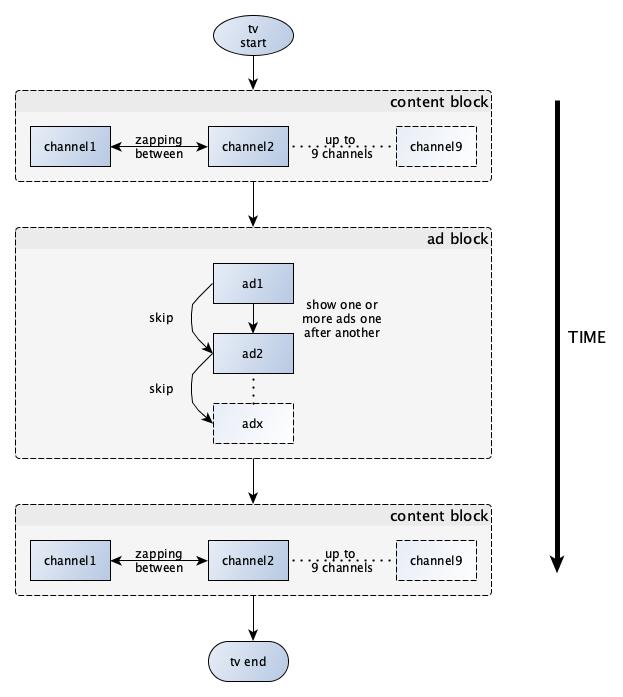
TV player behavior is recorded as timelines.
presenterType: onlineSlideshow is a legacy image and video sequence. For new studies use the slides context type, which covers the same use case.
type: setup with setupType: topicSelection asks respondents to pick topics they are interested in, for example before a feed. See SetupTaskDataTopicSelection in the schema.
Context, presenter and setup tasks can show instructions before (pre) and after (post) the task. Each instruction has two required fields:
html: the instruction text, HTML formattedbutton: the label of the continue button
Defaults:
- If
instructionsis not set, default instructions in the project language are used: pre instructions for every task, and post instructions after the last task. - If
instructionsis an empty object{}, no instructions are shown.
Placeholders in pre instructions are replaced at runtime:
| Placeholder | Replaced with |
|---|---|
{{duration}} |
exposureDuration of a context task, or timeout of a presenter task |
{{name}} |
adName of a context task |
{{context}} |
The context of a context task |
Custom pre instructions and no post instructions:
"instructions": {
  "pre": {
    "html": "You will now see a Facebook newsfeed.<br/>Please browse it for the next {{duration}} seconds as you normally would.",
    "button": "Continue"
  }
}
Three tasks with no instructions, custom instructions and default instructions:
[
  { "id": "task-1", "instructions": {} },
  {
    "id": "task-2",
    "instructions": {
      "pre": { "html": "Please browse the feed for {{duration}} seconds.", "button": "Continue" },
      "post": { "html": "Thank you.", "button": "Continue" }
    }
  },
  { "id": "task-3" }
]By default a study accepts the operating systems and browsers listed in the system requirements. deploymentFilters replaces that list on the project or on a single subject group (the group setting wins).
os: list of{ "name": ..., "min": ... }browsers: list of{ "name": ..., "min": ... }minis optional. Without it, every version is allowed.- Names are case-insensitive and follow ua-parser-js, for example
windows,mac os,linux,chrome,firefox,edge.
Windows 10 or newer and any Linux, with any browser:
"deploymentFilters": {
  "os": [
    { "name": "windows", "min": "10" },
    { "name": "linux" }
  ]
}
macOS 10.15 or newer with Chrome or Firefox 100 or newer:
"deploymentFilters": {
  "os": [{ "name": "mac os", "min": "10.15" }],
  "browsers": [
    { "name": "chrome", "min": "100" },
    { "name": "firefox", "min": "100" }
  ]
}
Respondents who do not match are returned to your survey with eligible=0.
Send respondents to the group's entryUrl from the API. It has this form:
https://schedule.incontext-research.com/scheduler/entry?ProjectID=<project id>&SubjectGroupID=<group id>
| Parameter | Required | Meaning |
|---|---|---|
ProjectID |
yes | Project ID |
SubjectGroupID |
yes | Group ID |
UserHash |
recommended | Your respondent ID. It becomes the subjectId in the results. It must be unique per project; a respondent who comes back with a used UserHash sees a "session expired" page, unless re-entry applies (see below). Without it, an ID is generated. |
origin |
optional | Base URL of the return link. Without it, the HTTP referrer of the entry request is used. |
SessionID |
for resuming | Resumes an existing session, for example after an intermediate survey. The other parameters can then be omitted. |
| any other parameter | optional | Passed back unchanged on the return URL |
URL-encode all values.
When the respondent reaches a survey task or the end of the study, they are sent back to origin (or the referrer) with these query parameters, followed by all extra parameters you passed in:
| Parameter | Values | Meaning |
|---|---|---|
success |
0 or 1 |
Whether the respondent met the success criteria. While the study is still in progress (sessionFinished=0) it is provisionally 1. |
eligible |
0 or 1 |
Whether the respondent's device and browser met the requirements and the study could run |
sessionFinished |
0 or 1 |
1 when the whole study is finished. 0 on an intermediate return. |
SessionID |
string | Session identifier. Store it to resume the session. |
previousTask |
task ID | The task before the return |
Use success for quality filtering only when sessionFinished=1.
A survey task returns the respondent to your survey in the middle of the study (sessionFinished=0). To continue, send them back to:
https://schedule.incontext-research.com/scheduler/entry?SessionID=<SessionID from the return URL>
Survey programming details: survey integration.
With allowReentry: true on the project, a respondent who calls the same entry URL again can continue an unfinished session within two hours of its start. They restart the task they left, and progress within that task is lost. Otherwise, or when the session is finished or older than two hours, they see the "session expired" page.
returnUrl on a subject group replaces the default return URL with a Handlebars template. Use triple braces so that the URL is not HTML-escaped. Available values include returnUrl (the default return URL with all parameters above), eligible, session, group and task.
Append a fixed parameter to the default return URL:
"returnUrl": "{{{returnUrl}}}&cell=fb-desktop"If the template cannot be rendered, the default return URL is used with an added returnUrlError parameter that describes the problem.
After a task, the recorded metrics are compared with the task's success parameters. The result is returned to your survey as success.
| Field | Type | Passes when |
|---|---|---|
visible |
Int (ms) |
The element was visible for longer than this many milliseconds (visibility_Duration). 1 means "was visible at all". |
played |
Int (ms) |
The video played for longer than this many milliseconds (playback_Duration) |
percentPlayed |
0 to 100 |
The video played for more than this share of the task's main video length |
loaded |
Boolean |
The element was loaded (loaded_Time is set) |
elements |
list | Separate conditions per tracked element. See below. |
matchBehavior |
ANY or ALL |
How several matching elements are combined. See below. |
min |
Int |
Minimum number of matching elements. Default 1. |
Without elements, the conditions apply to every tracked element of the task. With elements, each entry is evaluated on its own, using only the fields inside that entry. Put matchBehavior and min inside each element in that case: top-level fields are ignored when elements is set.
Each element entry selects tracked elements with id and type patterns. Patterns are globs: * matches any characters, for example story-* or post-0. Element IDs and types appear in the metrics results.
matchBehavior:
| Value | Passes when |
|---|---|
| not set | At least min elements match, and every matching element meets the condition |
ANY |
At least min matching elements meet the condition. Others may fail. |
ALL |
Every element the setup expects was tracked, and all of them meet the condition |
If no element matching an entry was recorded, the task does not pass. Empty success parameters ({}) switch the success check off. Basic plausibility checks on the recorded data still apply to every task and can mark it unsuccessful.
At least one of several ads watched for more than one second:
"successParameters": {
  "elements": [
    { "id": "*", "played": 1000, "matchBehavior": "ANY", "min": 1 }
  ]
}
The first story was visible:
"successParameters": {
  "elements": [{ "id": "story-0", "visible": 1 }]
}When a task has no successParameters, the organization default for its format is used, depending on whether user guidance is enabled. Parameters set on a task replace the default completely; they are not merged with it. Your organization's current defaults are returned by settings { successParameters }, keyed by format name in kebab case (for example facebook-newsfeed-static) with ug (guided) and noUg (not guided) entries.
{
  settings {
    successParameters
  }
}Excerpt of a response:
{
  "data": {
    "settings": {
      "successParameters": {
        "facebook-newsfeed-video-autoplay": {
          "ug": { "percentPlayed": 90 },
          "noUg": { "visible": 1 }
        },
        "facebook-stories-static": {
          "ug": { "elements": [{ "id": "story-0", "visible": 1 }] },
          "noUg": { "elements": [{ "id": "story-0", "visible": 1 }] }
        },
        "youtube-preroll": {
          "ug": { "played": 5000 },
          "noUg": { "visible": 1 }
        }
      }
    }
  }
}
An empty entry ({}), as for the control formats, means there is no default success check, so only the plausibility checks apply unless you set your own successParameters.
Metrics and timelines are fields of a project. Both accept the same filters, which can be combined:
| Argument | Meaning |
|---|---|
subjectGroup: CustomID |
Only this group |
task: CustomID |
Only this task ID. Task IDs can repeat across groups, so combine it with subjectGroup. |
subject: String |
Only this respondent (UserHash) |
{
  project(id: "2026-10_AB001") {
    metrics(first: 10, subjectGroup: "fb-desktop", task: "exposure", subject: "RESPONDENT_ID") {
      nodes { subjectGroupId taskId subjectId }
    }
    timelines(first: 10, subjectGroup: "fb-desktop", task: "exposure", subject: "RESPONDENT_ID") {
      nodes { subjectGroupId taskId subjectId }
    }
  }
}A metric set holds the metrics of one respondent in one task. It contains elements: the tracked parts of the setup, usually the test ad and its parts (for example a carousel container and its items). Each element has an id, a type and a list of metrics with name, value and timestamp.
{
  "subjectGroupId": "fb-desktop",
  "taskId": "exposure",
  "subjectId": "RESPONDENT_ID",
  "elements": {
    "nodes": [
      {
        "id": "carousel-container",
        "type": "facebook-post-carousel",
        "metrics": {
          "nodes": [
            { "name": "loaded_Time", "value": "1326", "timestamp": "1791993361701" },
            { "name": "visibility_Duration", "value": "7001", "timestamp": "1791993363872" },
            { "name": "actionUrl_ClickTime", "value": null, "timestamp": null }
          ]
        }
      }
    ]
  }
}valueis always a string, ornullif the event did not happen. Convert it to a number yourself.*_Durationvalues are durations and*_Timevalues are points in time since the start of the recording, both in milliseconds.timestampis the Unix time in milliseconds when the metric was first recorded.- Every element type returns a fixed set of metric names. Metrics that were not recorded are
null. - The metrics available per format are listed in the API metrics overview.
A timeline is a sequence of timestamped events of one respondent in one task, for example scroll positions, visible areas or interactions. The available timelines are the fields of TimelineList in the schema (for example StimulusSequence, StimulusSequenceHost, Interact, Scroll, VisibleRect, CustomEvent). Each one is a paginated list. Request only the timelines and fields you need, and use small pages.
{
  project(id: "2026-10_AB001") {
    timelines(first: 10) {
      nodes {
        subjectGroupId
        taskId
        subjectId
        timelines {
          StimulusSequenceHost(first: 10) { nodes { Timestamp StimulusID } }
          Interact(first: 100) { nodes { Timestamp Value EventType } }
        }
      }
    }
  }
}
TV player tasks record these timelines:
| Timeline | Events |
|---|---|
StimulusSequence |
A video started playing visibly (StimulusID is the video ID) |
StimulusSequenceHost |
Task start and end (StimulusID is TaskStart or TaskEnd) |
Interact |
The respondent switched channels (EventType: zapping, Value is the video that was playing) |
CustomEvent |
Playback stopped, failed to restart or resumed, for example on a bad connection (Name is the video, Value is the event) |
"StimulusSequence": {
  "nodes": [
    { "Timestamp": "1542967291284", "StimulusID": "content1_ch1" },
    { "Timestamp": "1542967356656", "StimulusID": "spot_1" }
  ]
},
"Interact": {
  "nodes": [
    { "Timestamp": "1542967314343", "Value": "content1_ch1", "EventType": "zapping" }
  ]
}settings returns your organization's defaults:
{
  settings {
    allowReentry          # default for new projects
    successParameters     # default success parameters per format
    watermark { mode }    # default watermark
  }
}| Date | Change |
|---|---|
| 2026-10 | Page rewritten: quickstart, current roles and error format, return URL parameters, success parameter rules, reading context types and default success parameters from the schema. Removed the deprecated token login. |
| 2026-07 | API secrets managed in the Accounts app |
For technical questions about this API, email api-support@eye-square.com. Include the request, the full response and any error ID.